MagicWP Migration
MagicWP Backup Restore and Migration is our free WordPress plugin, on the WordPress.org plugin directory. It backs up a site in resumable chunks, then hands it to another site with a transfer token - the destination pulls the backup itself, so nothing is downloaded to your computer and back up again.
It is the method to use when you can still install a plugin on the old site.

| Consideration | Detail |
|---|---|
| Requires | WordPress 6.2+, PHP 8.1+ on both sites |
| Destination | A new site - the plugin needs a working WordPress install to receive into |
| Good for | Any site you can log in to and install a plugin on |
| Not for | A site that is down, or one where you only have a backup file - use manual migration |
1. Install the plugin on both sites
Install and activate MagicWP Backup Restore and Migration on the old site and on the new MagicWP site. It appears as MagicWP Backup in the WordPress admin sidebar.
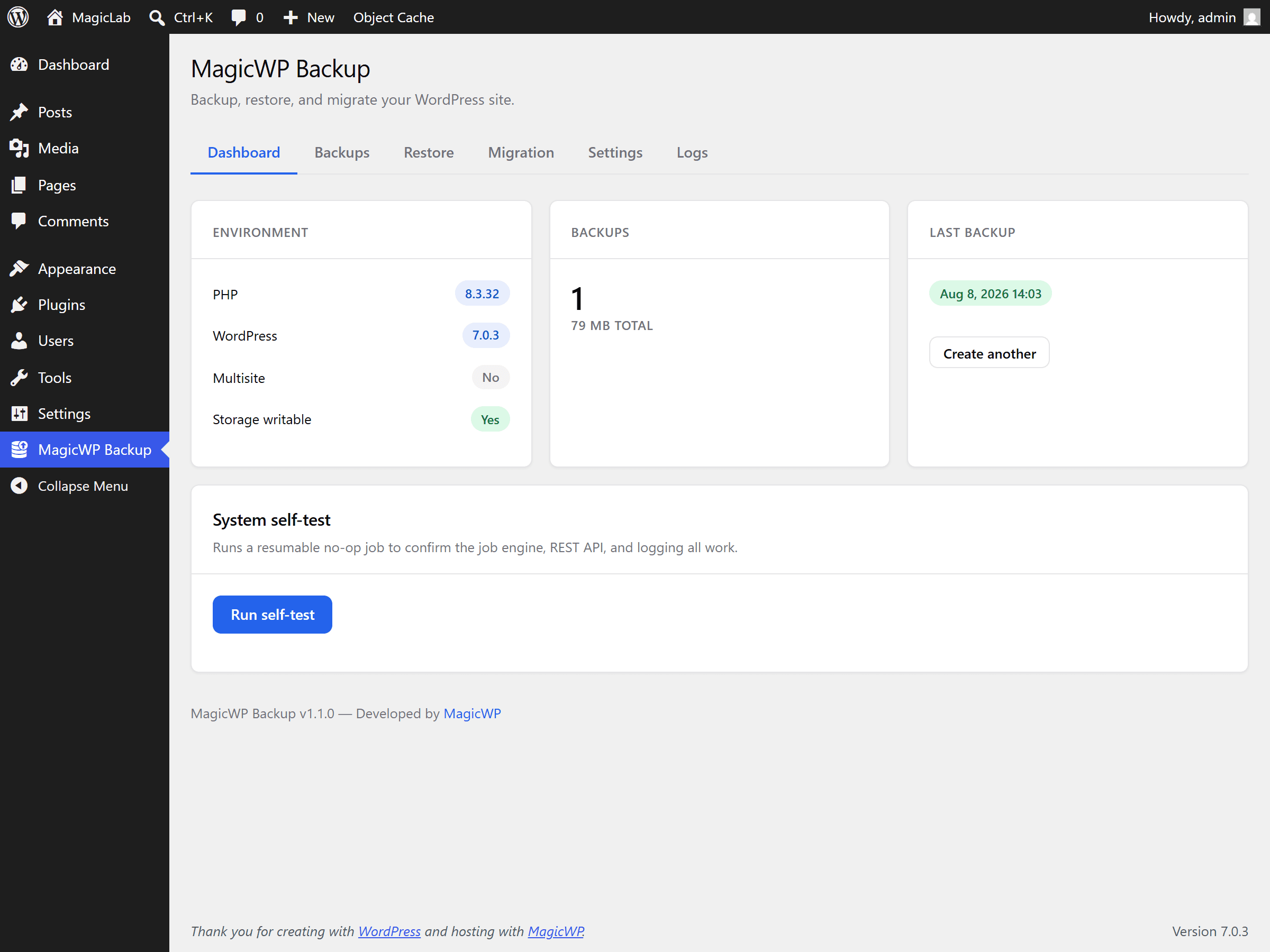
Open it on both and run the system self-test from the dashboard. It reports PHP limits and directory permissions - better to see a problem now than half way through a transfer.
2. Back up the old site
On the old site, open MagicWP Backup → Backup and create a backup.
Backups are chunked and resumable, so a large site on modest shared hosting will still finish - it picks up where it left off rather than dying at a timeout.
Under exclusions you can leave out Plugins, Themes, Uploads,
Must-use plugins or Cache, and skip files over a size you choose. Leave
these alone for a straight migration. The one worth using is the file-size limit
if the old site has stray multi-gigabyte files in wp-content that you know you
don't need.
3. Generate a transfer token
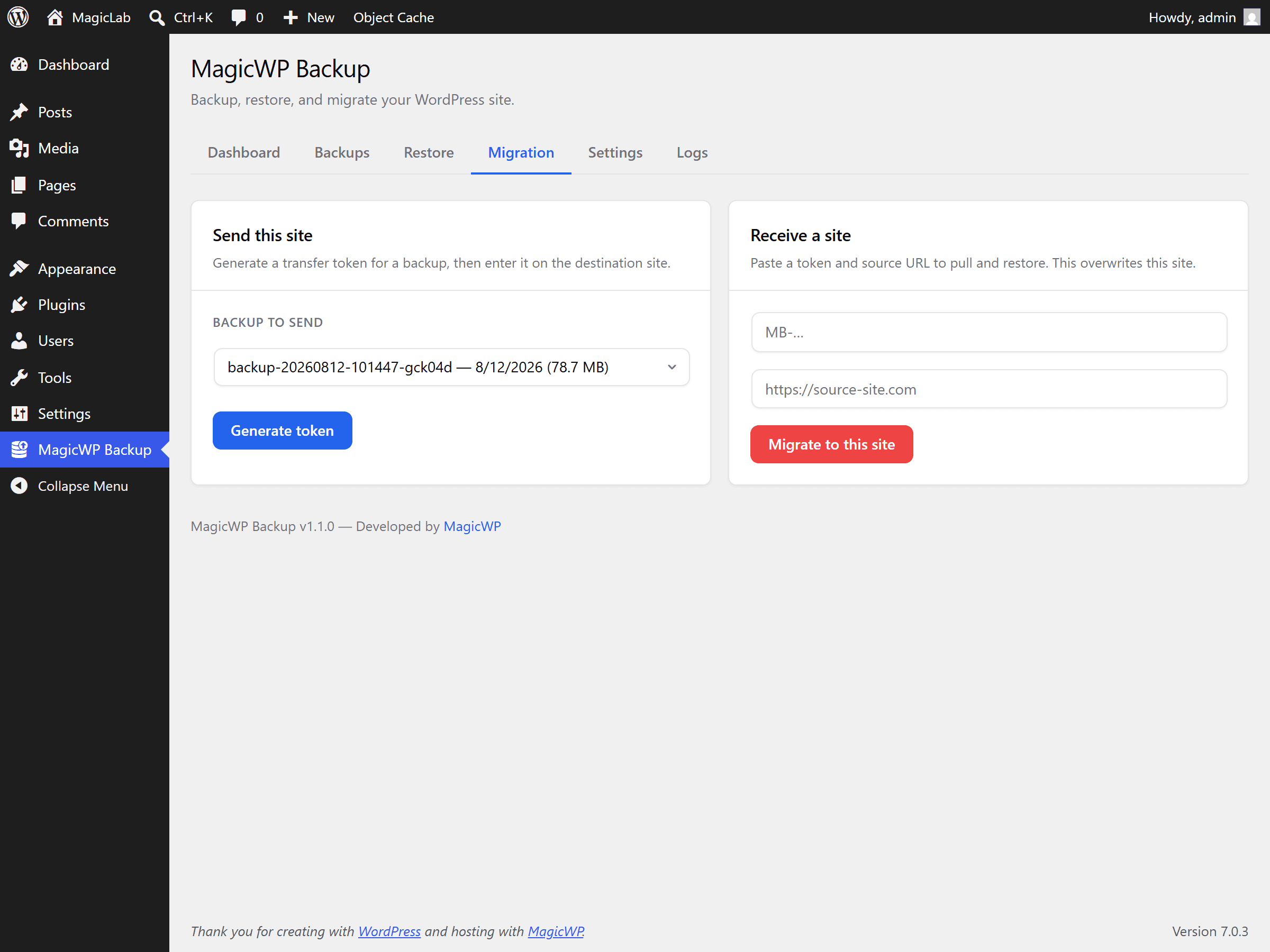
Still on the old site, go to the Migration tab.
- In Send this site, pick the backup you just made under Backup to send.
- Click Generate token.
- A Transfer token generated dialog appears with two values - the
Transfer token (it starts with
MB-) and the Source URL. Copy both.
The token expires in 24 hours
It is single-purpose and hashed at rest - it only authorises downloading that one backup. If it lapses, generate another; the backup itself is still there.
4. Receive it on the MagicWP site
On the new site, open MagicWP Backup → Migration and use the Receive a site card:
- Paste the transfer token into the first field.
- Paste the source URL into the second.
- Click Migrate to this site.
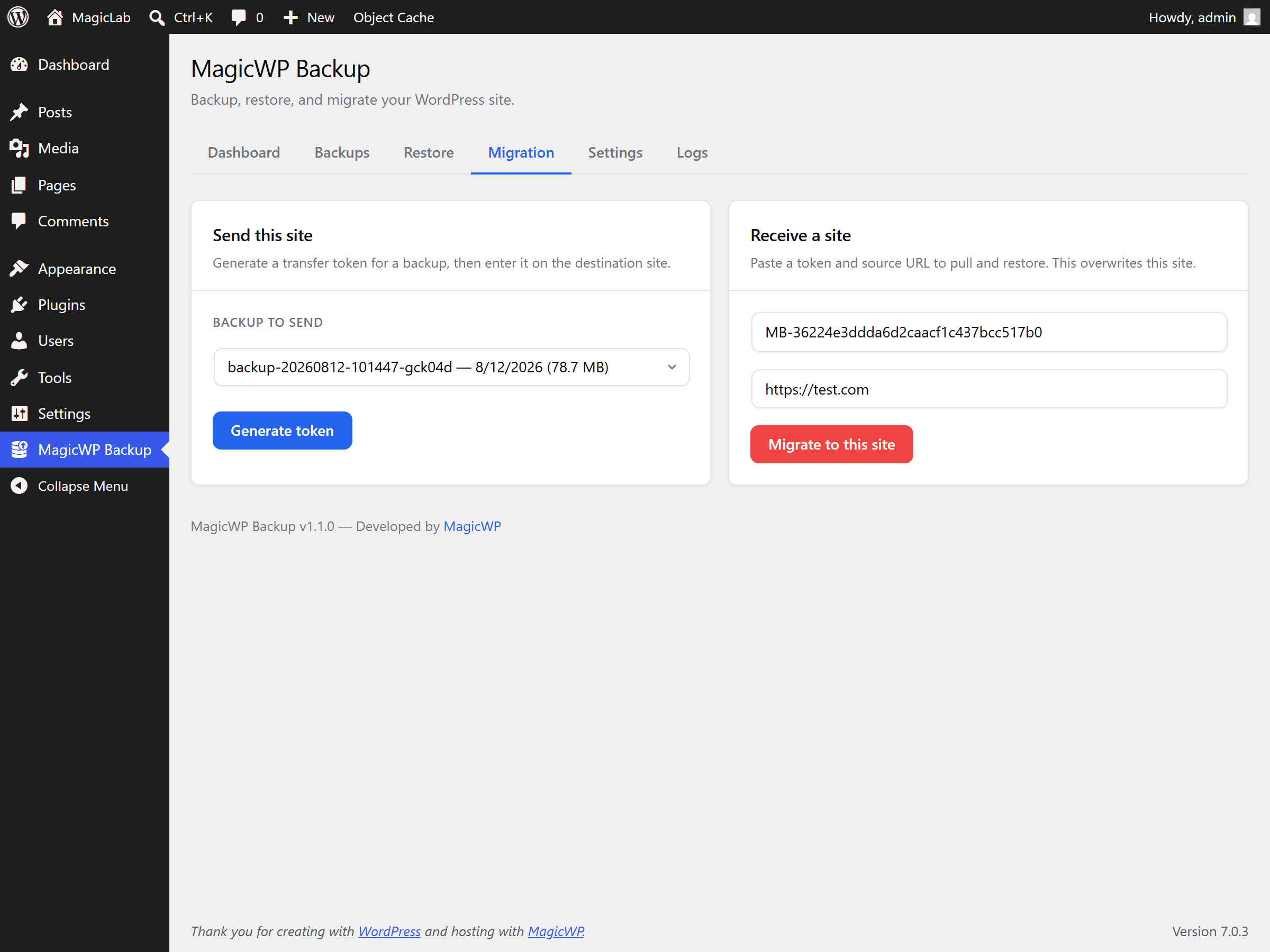
A progress bar shows the phase and percentage as it pulls and restores. The restore remaps the database table prefix if the two sites differ, and does a serialized-safe search and replace on the URLs - so widget settings and plugin options survive rather than breaking into corrupted strings.
This overwrites the destination
Migrate to this site replaces the site's files and database with the
incoming ones. Only ever point it at the site you intend to replace. The
destination's own wp-config.php is preserved, so its database credentials
keep working.
5. Finish up
Once the progress bar completes, log in to the new site and work through
After the move - Fix Site first, then check
URLs, test on the *.magicwp.net address, flush the caches, and only then point
your domain across.
If a transfer stalls
| Symptom | Cause and fix |
|---|---|
| Progress stops early in the pull | The old host is rate-limiting or timing out the download. Retry - the transfer resumes rather than restarting. |
| "Token invalid or expired" | More than 24 hours passed, or the token was already consumed. Generate a new one. |
| Backup fails on the old site | PHP memory or time limits. Re-run it - chunks already written are kept - or exclude large files and copy them over SFTP afterwards. |
| Restore finishes but the site looks wrong | Run Fix Site, then flush the page and object caches. |
| Ran out of disk part-way | The new site's storage limit is smaller than the incoming data. Raise it under Settings → Storage Limit and retry. |