Manual Migration
A manual migration is the copy underneath every other method: move the files,
move the database, repoint the URLs. It takes longer, but it works when nothing
else will - a site that won't load, a host that won't let you install plugins, or
a .zip and a .sql file that are all you have left.
| Consideration | Detail |
|---|---|
| Requires | An SFTP client, and access to the old site's files and database |
| Destination | An empty environment - no WordPress to conflict with what you're bringing in |
| Good for | Broken sites, plugin-less hosts, restoring from an old archive |
| Not for | A routine move you could do with MagicWP Migration in a fraction of the time |
1. Export the old site
Files. Download the whole WordPress directory over SFTP or your old host's
file manager. You need wp-content/ at minimum - themes, plugins and uploads.
Leave wp-config.php behind; the new site has its own.
Database. Export it as a single .sql file. In phpMyAdmin: select the
database, Export → Quick → SQL. If your old host offers a compressed export,
take it - these files get large.
Check the table prefix
Open the export and look at the first CREATE TABLE line. Most sites use
wp_, but plenty don't. You'll need the exact prefix in step 4.
2. Create the destination
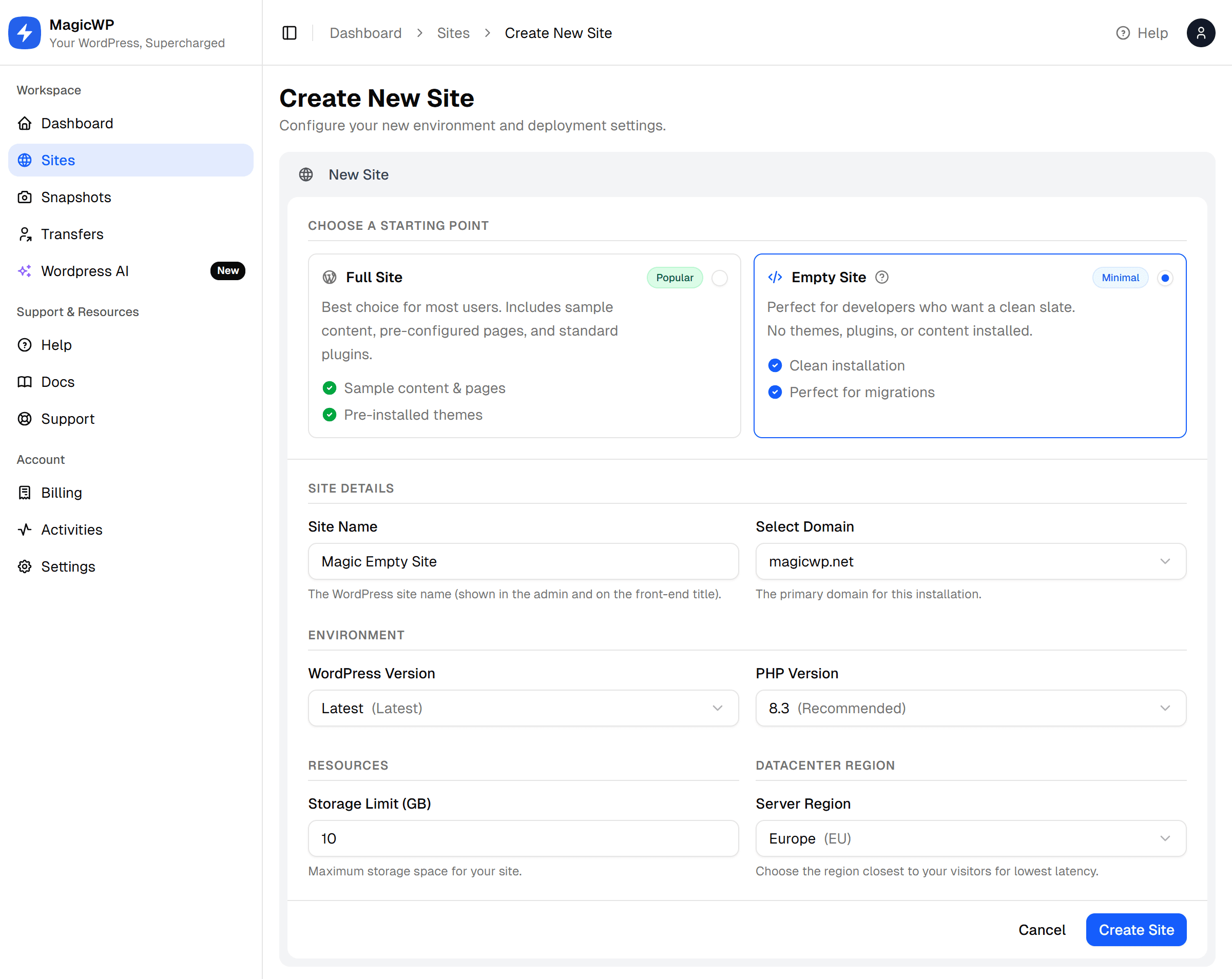
Create an empty environment - the full stack with no WordPress installed, so there's nothing to delete before you upload.
Set the storage limit to comfortably more than the old site's total size, and match its PHP version for now.
3. Upload the files
Connect over SFTP using the credentials on the site's SFTP page, and
upload your files into the web root - the directory holding wp-config.php.
Large uploads over SFTP are slow and easily interrupted. Two things help:
- Upload
wp-content/uploads/as its own transfer, separately from everything else. It is usually the bulk of the data, and if it drops you can resume just that part. - Use a client that supports resuming, and leave the connection alone while it runs.
4. Import the database
Get the new site's credentials from its Database page, then open phpMyAdmin from the same page.
- Select the site's database in the left sidebar.
- Go to Import, choose your
.sqlfile, and run it. - If the file is too large to upload through phpMyAdmin, split it or import it with WP-CLI instead.
Now match the prefix. Open the new site's wp-config.php over SFTP and set
$table_prefix to the prefix in your export:
$table_prefix = 'wp_';The credentials already in that file are correct - change only the prefix.
5. Fix the URLs
If the site is moving to a different domain, the old URL is still written throughout the database - in options, post content, and inside serialized plugin settings where a plain find-and-replace corrupts the data.
Use Search & Replace from the dashboard, which handles serialized values safely. Replace the old site URL with the new one:
| Search for | Replace with |
|---|---|
https://oldsite.com | https://yoursite.magicwp.net |
Run it without the trailing slash so both https://oldsite.com/about and bare
references are caught.
Never search-and-replace with SQL
A UPDATE ... REPLACE() query across wp_options or wp_postmeta breaks every
serialized array it touches - the string lengths stop matching their contents,
and the settings silently stop loading. Use the dashboard tool.
6. Finish up
Work through After the move: Fix Site first,
then test on the *.magicwp.net address, flush both caches, and point your
domain over.
Common problems
| Symptom | Cause and fix |
|---|---|
| "Error establishing a database connection" | $table_prefix or the credentials in wp-config.php don't match the database. Re-check both on the Database page. |
| Blank white page | A PHP error. Match the old site's PHP version, then check the error log. |
Site loads, wp-admin redirects to the old domain | siteurl and home still hold the old URL. Re-run Search & Replace. |
| Images missing, everything else fine | wp-content/uploads/ didn't finish uploading. Re-transfer just that directory. |
| Styling gone | Theme files missing, or the URLs in the database still point at the old host. Check both. |