Migrate with Duplicator Plugin
Duplicator bundles a WordPress site into two files - an archive holding the files and database, and an installer script that unpacks it. You upload both to the new site and run the installer in a browser.
Because the installer builds the site itself, the destination should be empty.
| Consideration | Detail |
|---|---|
| Requires | Duplicator on the old site; an SFTP client |
| Destination | An empty environment - the installer expects a clean web root |
| Good for | Sites already using Duplicator; small to medium sites |
| Not for | Very large sites on slow hosts - the archive step often times out. Use Migrate Guru instead |
1. Build the package on the old site
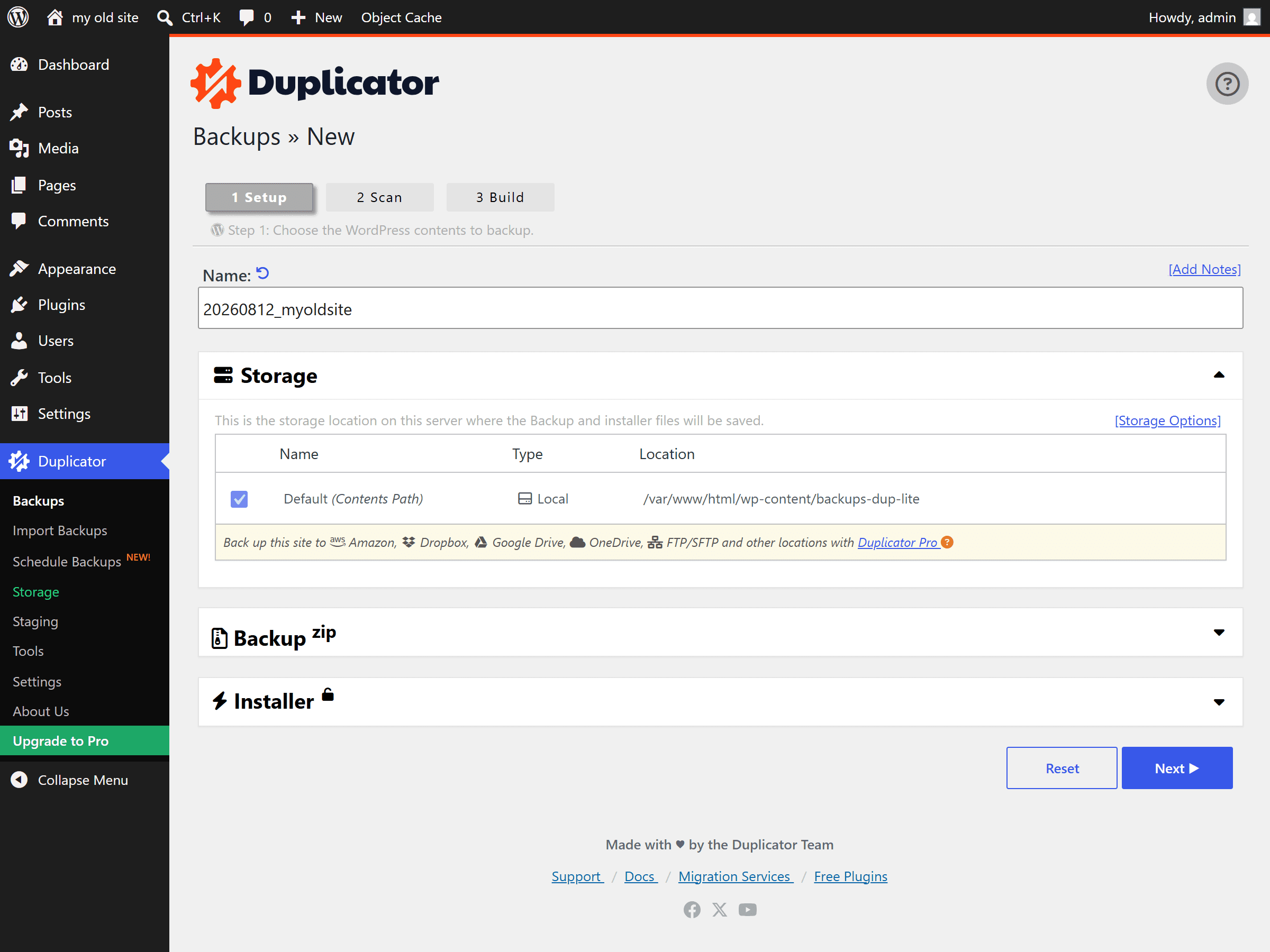
Install and activate Duplicator on the old site, then create a new package and let it build. Duplicator scans the site first and warns about anything likely to cause trouble - oversized files, or a database it considers too large.
When it finishes, download both files it produces: the archive (.zip) and
installer.php. One without the other is no use.
If the build stalls
Exclude wp-content/uploads/ from the package, let it build without them, and
copy the uploads directory across separately over SFTP afterwards.
Media files are usually most of the weight and none of the difficulty.
2. Create an empty environment
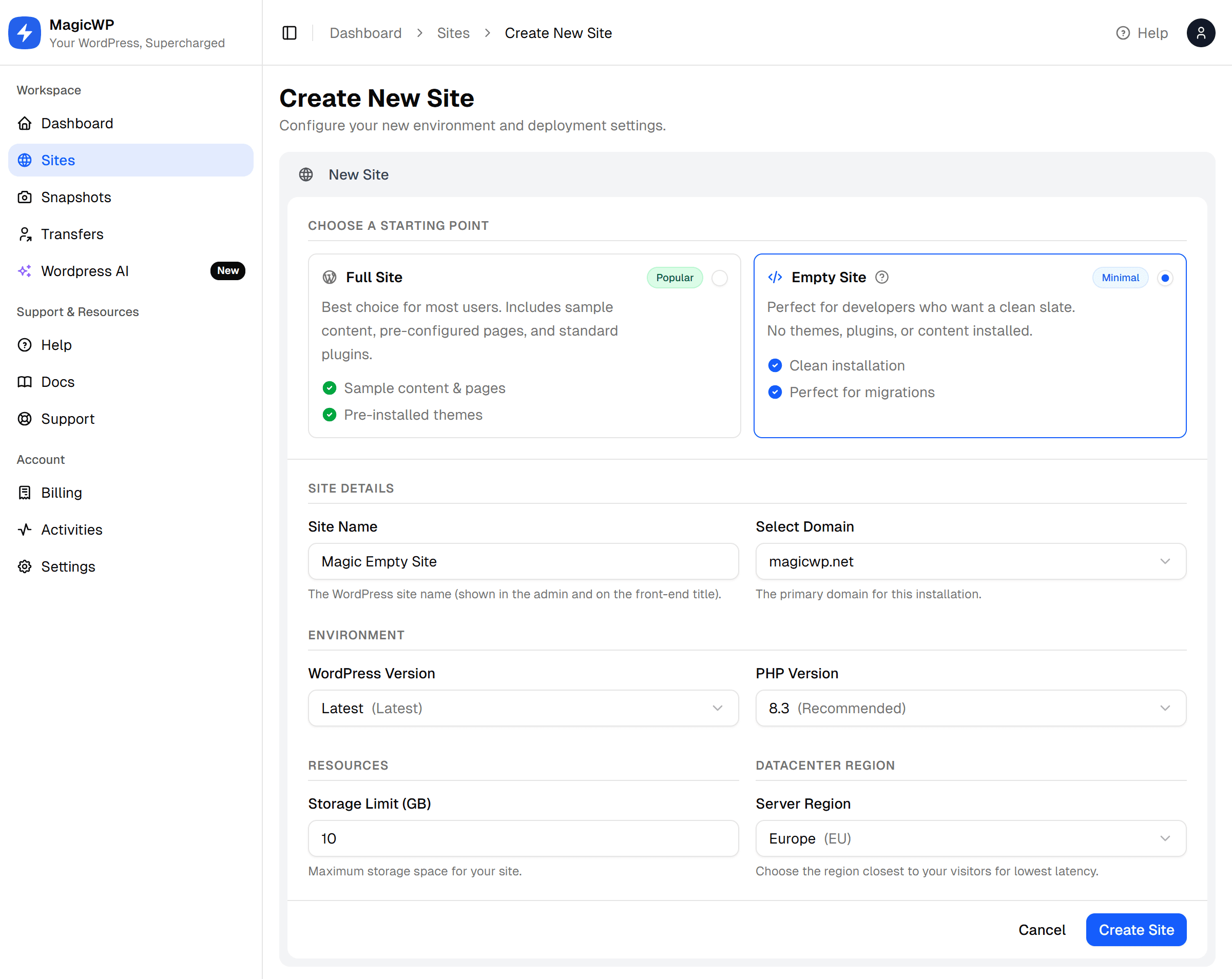
Create an empty environment. The installer wants a clean web root - a normal new site would mean deleting the WordPress install it ships with first.
Set the storage limit to more than the old site's total size. The archive and the unpacked site both sit on disk during the install, so allow room for both.
3. Upload both files
Connect over SFTP and upload the archive and installer.php into the
web root - the top level, alongside where wp-config.php will end up. Not into a
subdirectory.
4. Run the installer
Visit https://yoursite.magicwp.net/installer.php in a browser.
Duplicator asks for the destination database. Take the values from the site's Database page:
| Installer field | Where to find it |
|---|---|
| Host | Database page |
| Database | Database page |
| User | Database page |
| Password | Database page |
Choose to connect to the existing database rather than creating one - the empty environment already has one provisioned, and Duplicator won't have permission to create another.
Work through the remaining steps. Duplicator handles the URL replacement itself, including serialized data, so accept the new URL it detects.
5. Clean up
When the installer reports success, delete the installer files and the
archive over SFTP. Duplicator prompts for this and it matters - leaving
installer.php in a public web root lets anyone who finds it overwrite your
site.
Remove:
installer.php- the archive
.zip - any
dup-installer/directory installer-backup.phpor similar leftovers
Do not skip this
An abandoned Duplicator installer is one of the most reliably exploited files in WordPress. Delete them before you point a domain at the site.
6. Finish up
Log in and work through After the move - Fix Site, check the URLs, test on the temporary domain, flush the caches, then move your domain over.
Common problems
| Symptom | Cause and fix |
|---|---|
| Package build never completes | The old host times out. Exclude uploads and copy them separately over SFTP. |
| Installer can't connect to the database | Wrong values, or it tried to create a database. Re-enter from the Database page and pick the existing one. |
| Installer 404s | The files went into a subdirectory. They belong in the web root. |
| Ran out of space mid-install | Archive plus unpacked site exceeds the storage limit. Raise it under Settings → Storage Limit. |
| Site works but images 404 | Uploads were excluded from the package. Copy wp-content/uploads/ over SFTP. |